 Free resource · Always updated
The Resource Vault
The drives, apps, printing companies and free videos I recommend for getting your iPhone photos backed up, organized and printed. Companies and apps change, so I keep this page current. Come back anytime.
Take the 5-Minute Phone Audit
Seven quick questions. Your results show your weak spots and link to the exact sections below that fix them.
Start the audit →Jump to your weak spot
Pick the area your audit flagged.
Enrolled in Beyond the Camera Roll 2.0? Go to your Library →
Some links below are affiliate links. As an Amazon Associate I earn from qualifying purchases. It doesn't change your price, and I only share things I use myself or genuinely trust.
Clear space on your iPhone
Ten short videos on finding what's filling your phone and clearing it safely. All 10 play on one page.
Back up your photos
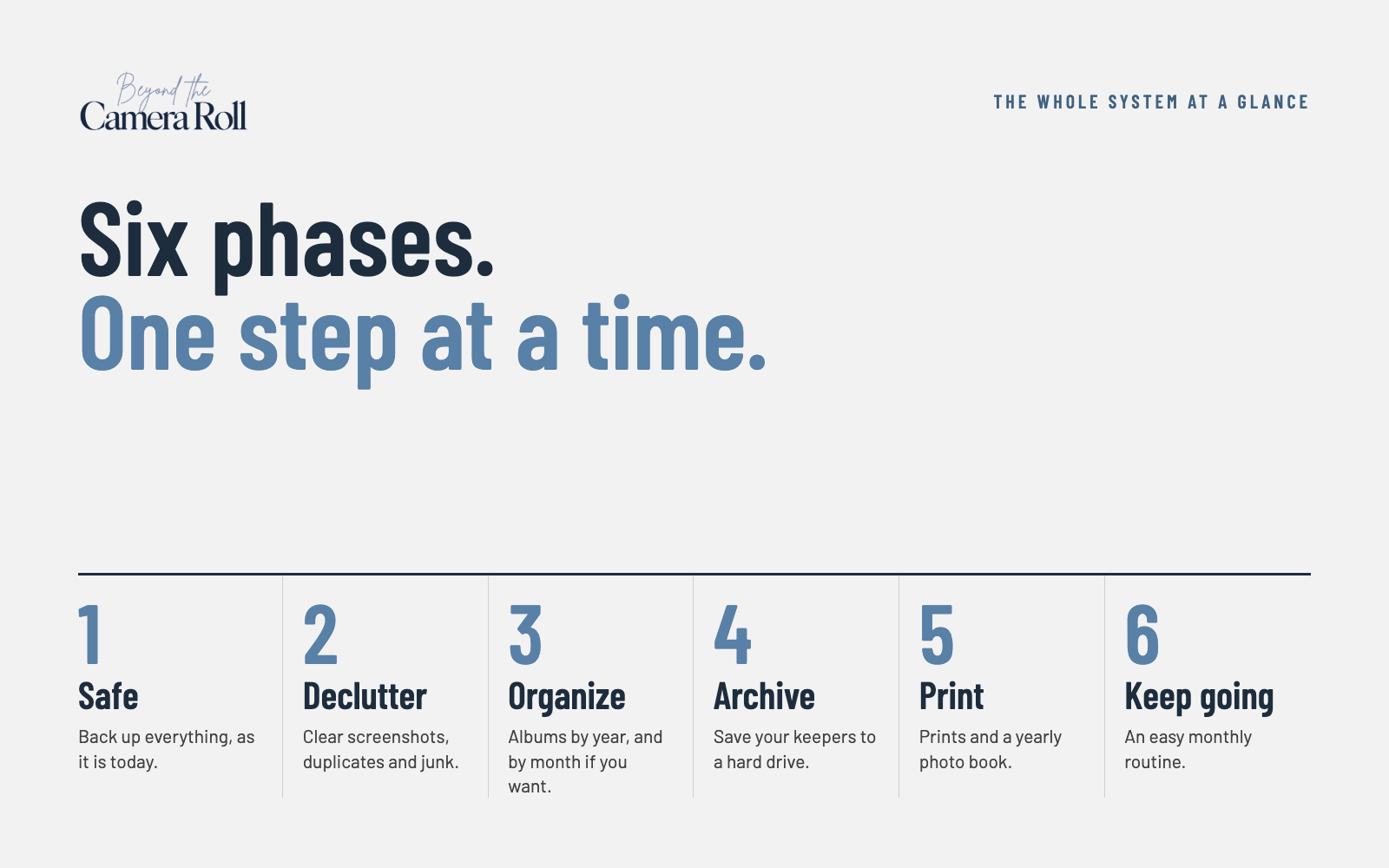
Before you delete or move anything, make sure your photos exist in at least two separate places.
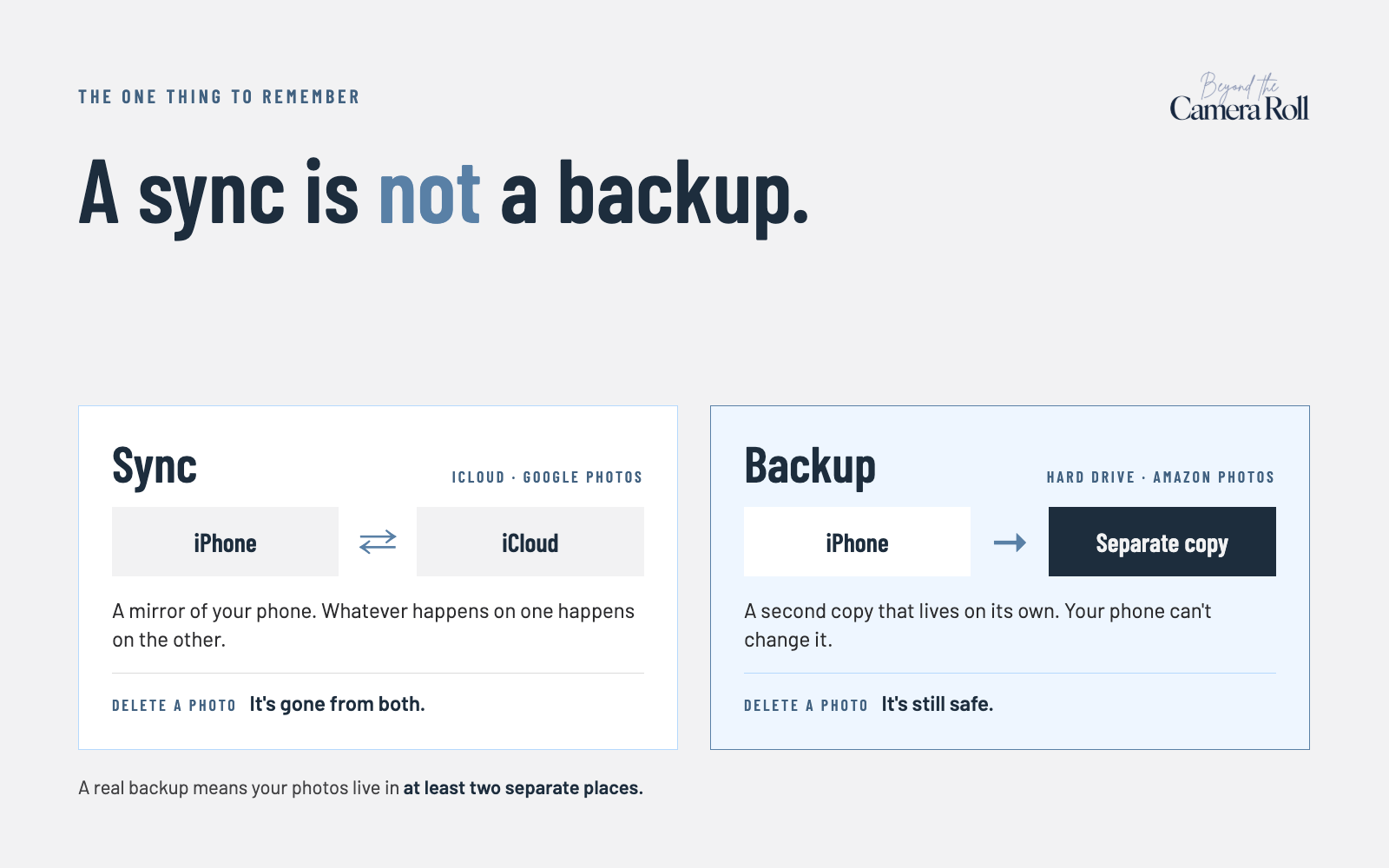
iCloud is a sync, not a backup
If you delete a photo from your phone, it deletes from iCloud too. A real backup is a separate copy that stays put no matter what happens on your phone. Video 5 explains it →
What counts as a real backup
- Computer + external hard drive
- Computer + cloud backup service
- Amazon Photos + external hard drive
- Any setup where your photos live in two separate places
No computer? Amazon Photos
Free for Prime members, unlimited full-resolution photos, and deleting from your phone does not delete from Amazon Photos.
- Download the Amazon Photos app
- Sign in with your Amazon account
- Turn on Auto-Save
Check that your iPhone is backing up
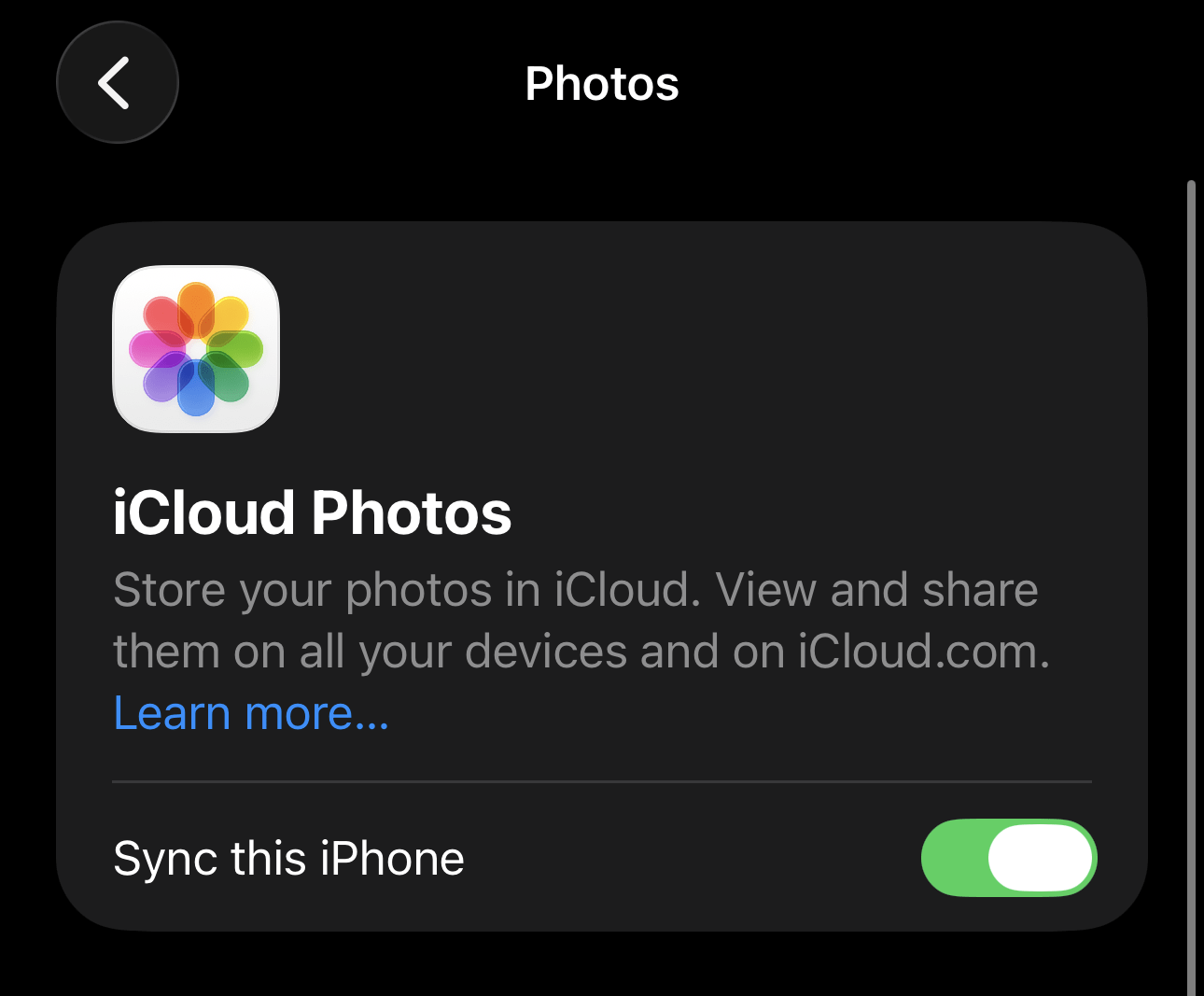
- Open Settings
- Tap your name at the top
- Tap iCloud, then Photos
- Make sure "Sync this iPhone" is on
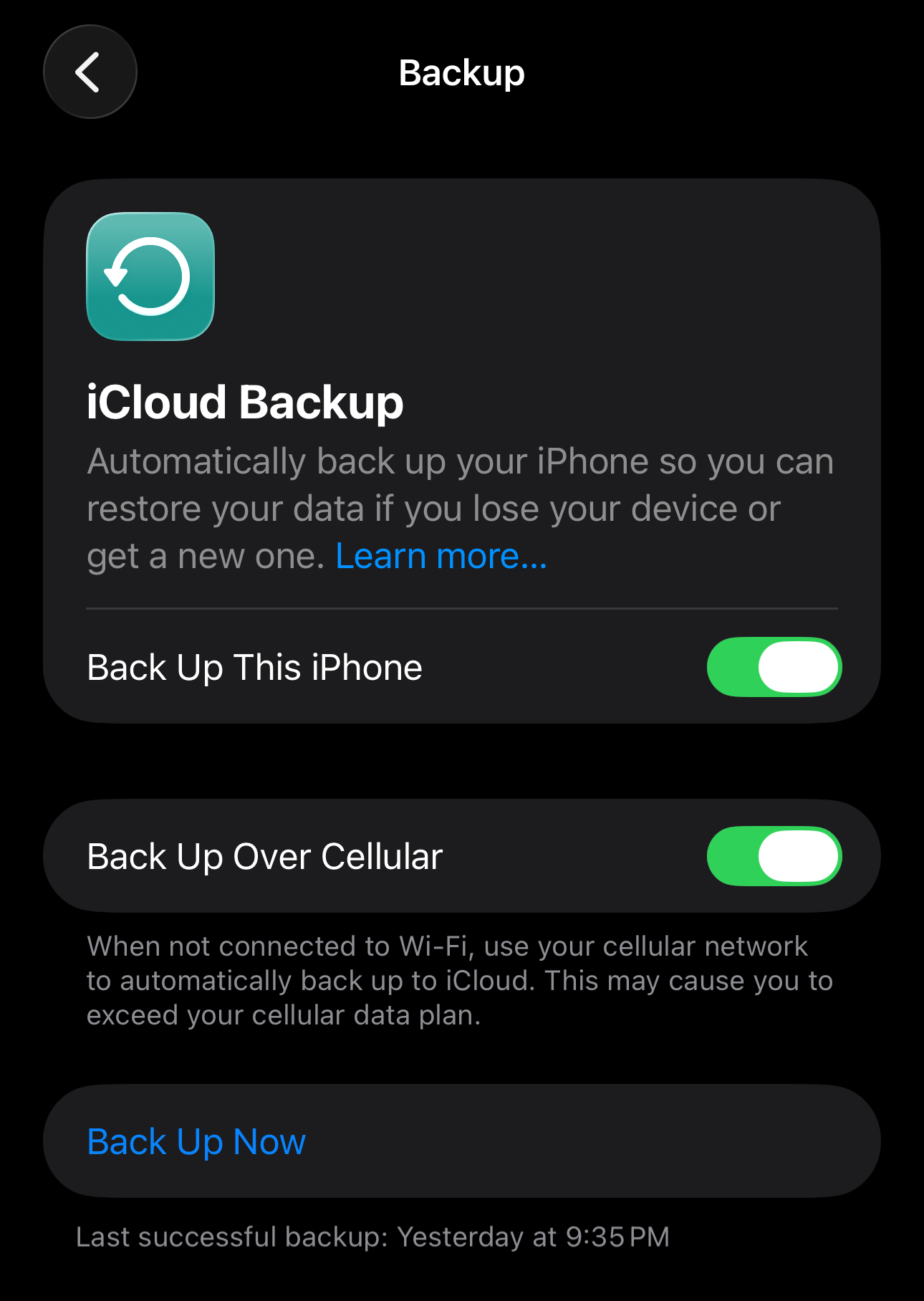
- Go back to iCloud
- Tap iCloud Backup and make sure it's on
- Check the last backup date
- If it's old, tap Back Up Now
You can also log in to iCloud.com to see your photos there.
Other backup tools
Automatic cloud backup: Backblaze or Carbonite. Runs quietly in the background.
Cloud storage: Dropbox. Reach your files from any device and share albums.
My own backup system
More layered than most families need, but I photograph for clients.
- iPhone syncs to iCloud
- Computer backs up to an external drive (a new one each year)
- Drives also back up to Dropbox and a home cloud
- Memory cards stay until files are in two places
Not sure how to set it up? Beyond the Camera Roll 2.0 walks you through every backup method on screen, tap by tap: browser, Mac, PC, and no computer at all.
See the courseHard drives & adapters
Three kinds of storage for three different jobs. Start with the first and add the others when you're ready.
Phone-to-drive
Plugs straight into your iPhone so you can save albums with the Files app. Small and easy to tuck in a drawer.
Check the specs before you buyLarger external drive
For backing up your whole computer, or keeping a second copy of your photo archive. Store it somewhere different from your first drive.
Seagate Expansion 6TBAmazon →Wireless home storage
Sits on your home Wi-Fi so every phone, tablet and computer in the house can reach the same photos. Your own private cloud, with no monthly fee.
Synology BeeStation 4TBAmazon →Adapters
If your drive's plug doesn't match your iPhone's port, an adapter connects the two. Lightning is on most iPhones before iPhone 15. USB-C is on iPhone 15 and newer.
USB-C to Lightning adapter
Plug a USB-C drive into an older iPhone.
OTG adapter (2-pack)Amazon →USB-A to USB-C adapter
Connect a drive with the larger rectangular plug to a USB-C iPhone.
CableCreation adapterAmazon →Not sure which one you need? Check the specs for your exact phone and drive before you buy. Course members can ask me directly in the private Facebook community, and I'll help you pick.
Back to top ↑Clean up the clutter
Start with the easy stuff: screenshots, memes and things with no emotional weight. This isn't about deleting memories.
Screenshots
- Photos → Collections → Media Types → Screenshots
- Tap Select, choose the obvious junk, delete
- Search by keyword: try Facebook, Amazon, recipe or school
Duplicates & bursts
- Duplicates: Collections → Utilities → Duplicates
- Bursts: Collections → Media Types → Bursts
- Recently Deleted keeps everything for 30 days
Want to see it done? Watch video 10: The Fastest Things to Delete →
Optional: Slidebox
Swipe up to delete, left or right to sort into albums. You don't need it, but if tapping feels slow, it helps.
Slidebox →Organize your albums
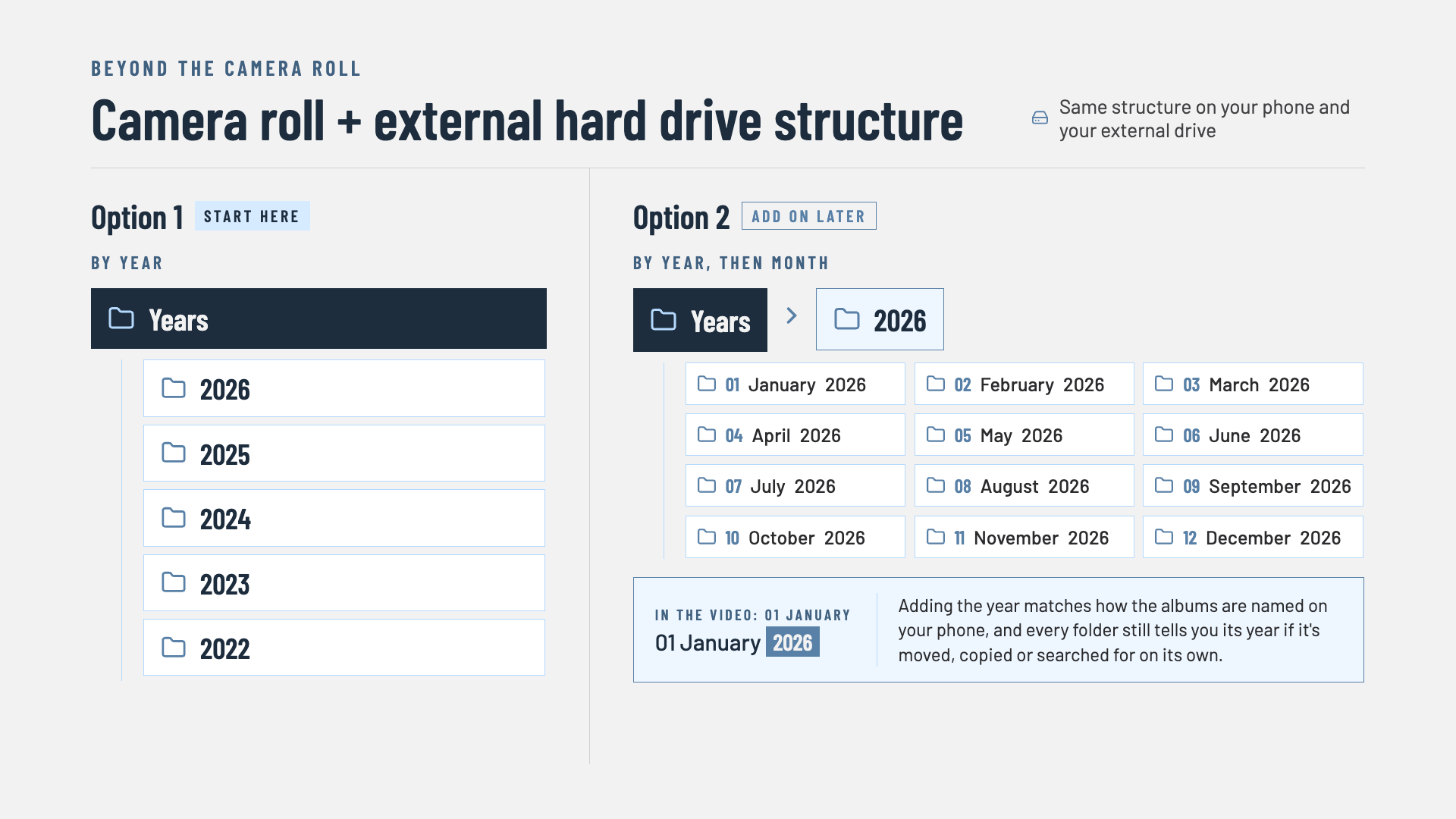
One folder, one album per year. Add months inside if you want. When it's time to print, you pick from a short list instead of thousands.
Find any photo in seconds
Name the people and pets in your photos, then search by person, place and thing together. Videos 6-9 show you how →
Print & photo books
Don't wait until everything is perfectly organized. Progress beats perfection.
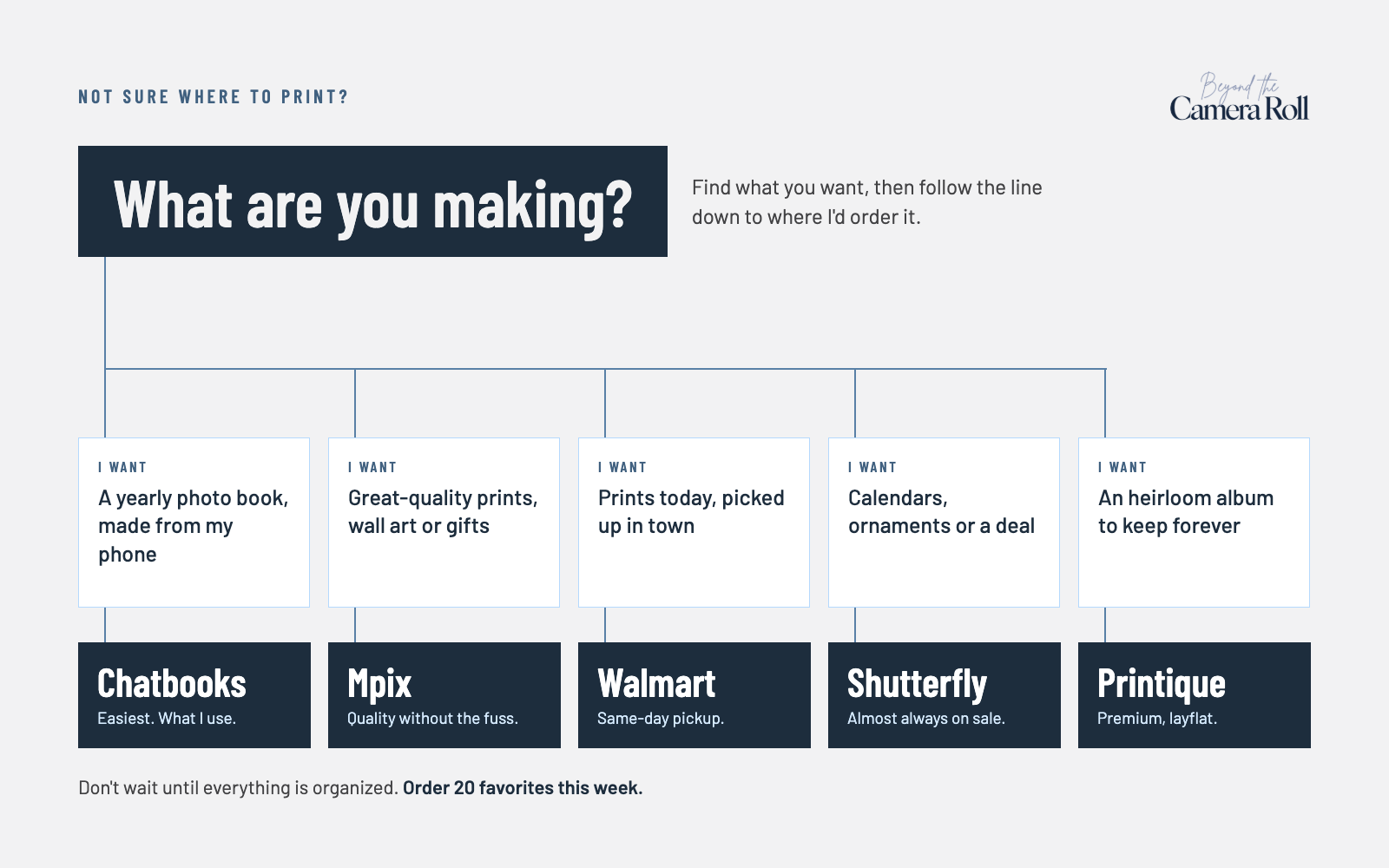
Not sure where to start? Pick one this week
- Order 20–25 favorite 4x6 prints from this year
- Choose one photo for an 11x14 wall print
- Make one small photo book
- Order a calendar for the grandparents
Chatbooks
Simple photo books with very little effort. I use it for our family yearbook every year. Look for a promo code before checkout.
Mpix
A step up in quality without being overwhelming. Great for 4x6s, wall prints, canvas and gifts.
Walmart Photo
Upload from your phone and pick up today. Good for fridge photos, school projects and last-minute gifts.
Shutterfly
Beginner friendly and almost always on sale. Calendars, graduation books and ornaments.
Printique
Heirloom quality for something special: layflat albums, statement wall art and keepsake books.
Watch me order
Beyond the Camera Roll 2.0 walks you through prints and a full Chatbooks yearbook on screen.
Creative projects
Once your photos are safe and printed, pick one project that fits your season right now.
Year-in-review book
20–30 pages is plenty.
- Cover
- Monthly highlights
- Vacations and holidays
- Family favorites
- A short family letter
- Back cover
Graduation memory book
- Baby years
- Elementary, middle and high school
- Activities and sports
- Friendships and awards
- Senior portraits
- A letter from you
Workshop coming soon. Want to hear first? Email hello@freebirdbydena.com.
Design pages in Canva
A beginner-friendly way to lay out graduation books, year-in-review albums, calendars and collages before uploading to a print company.
Canva (free version) →Grow your photography
No pressure. Skill comes before gear, always.
Where to start on YouTube
Search one of these, watch one video, practice one thing.
- Photography basics for beginners
- Understanding natural light
- Composition tips for everyday photos
- How to shoot in manual mode
Editing tools to explore
- Adobe Lightroom: easy exposure and color adjustments
- Adobe Camera Raw: for RAW files if you already use Photoshop
Editing tutorials coming soon.
Thinking about a "real camera"?
Borrow one, rent one, or try a friend's before you spend anything. Beginner gear guide coming soon. Email hello@freebirdbydena.com and tell me what you'd want in it.
This page has the tools. The course shows you exactly how to use them.
28 tap-by-tap videos, a 52-page guide, printable checklists and a private Facebook community where I answer your questions personally. From your first backup to a printed photo book. Built for iPhone.